

Beam Studio 2.6.9 adds a guided Keychain Generator that turns a small personalized project into a much simpler workflow. Existing FLUX owners can shorten repetitive setup, while first-time makers get a clear starting point without drawing every outline from scratch.
A faster start for a small project
A keychain needs more than an attractive shape. It also needs a practical connection point, correctly placed text or artwork, and a clean division between the parts you intend to engrave and cut. Building all of that manually can make a first project feel more complicated than it looks.
The Beam Studio 2.6.9 release notes confirm that the Keychain Generator was added in this version. It gives you a guided place to choose a style, personalize the design, review it, and bring it into the Beam Studio canvas.
Meet the Keychain Generator
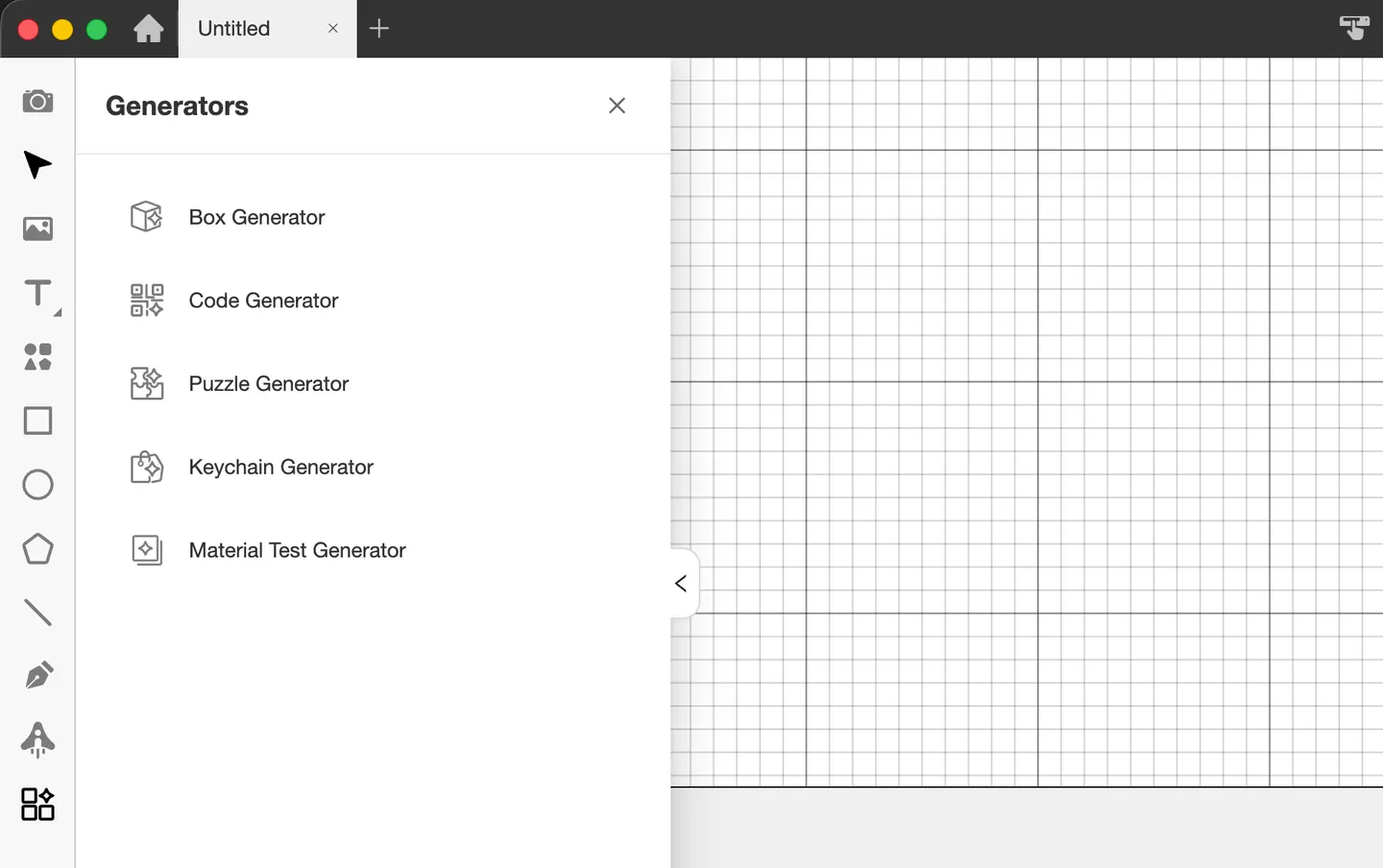
Open the Generators menu and choose Keychain Generator. The current menu also groups Box Generator, Code Generator, Puzzle Generator, and Material Test Generator in one place.
Start with a style
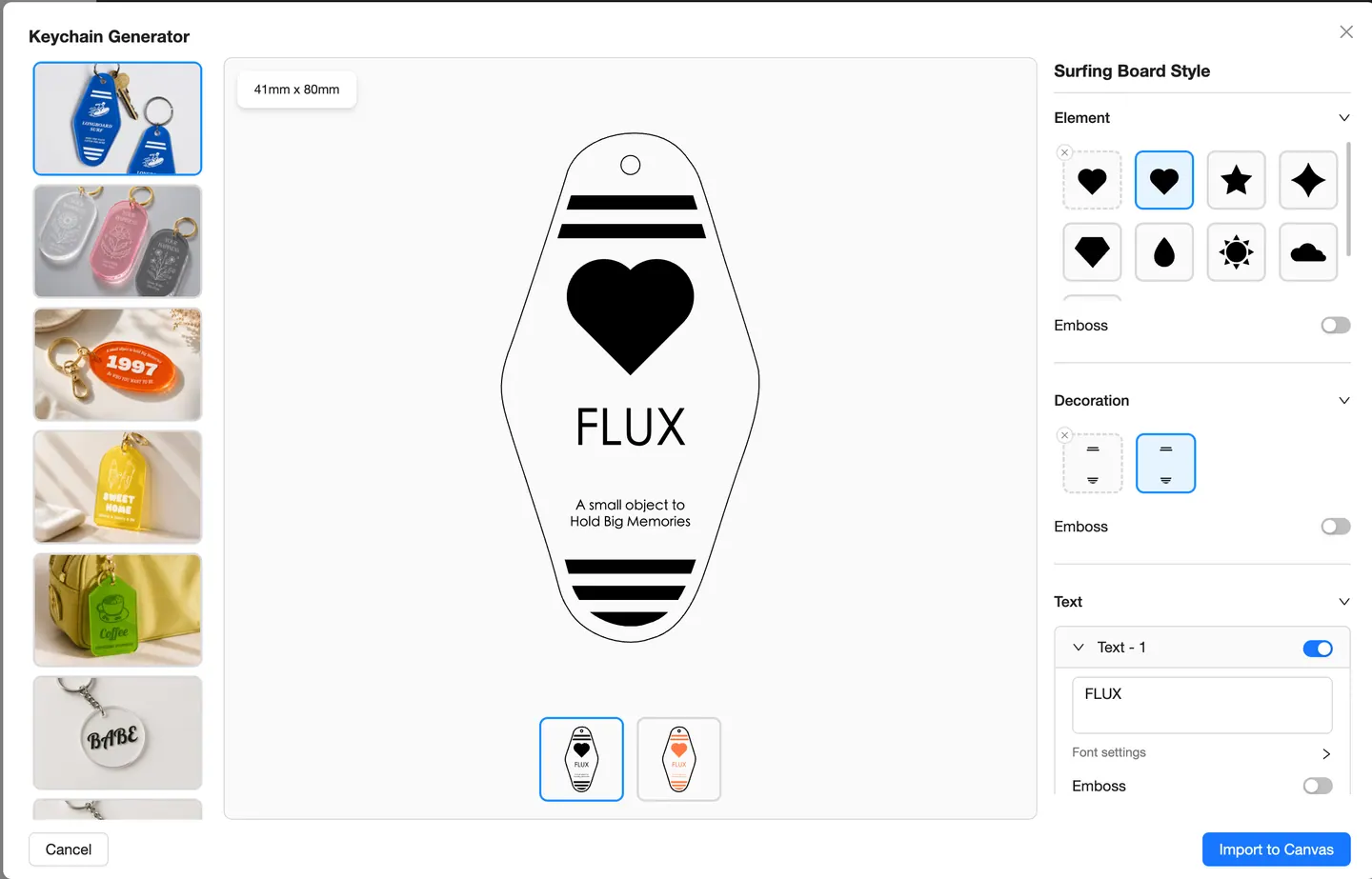
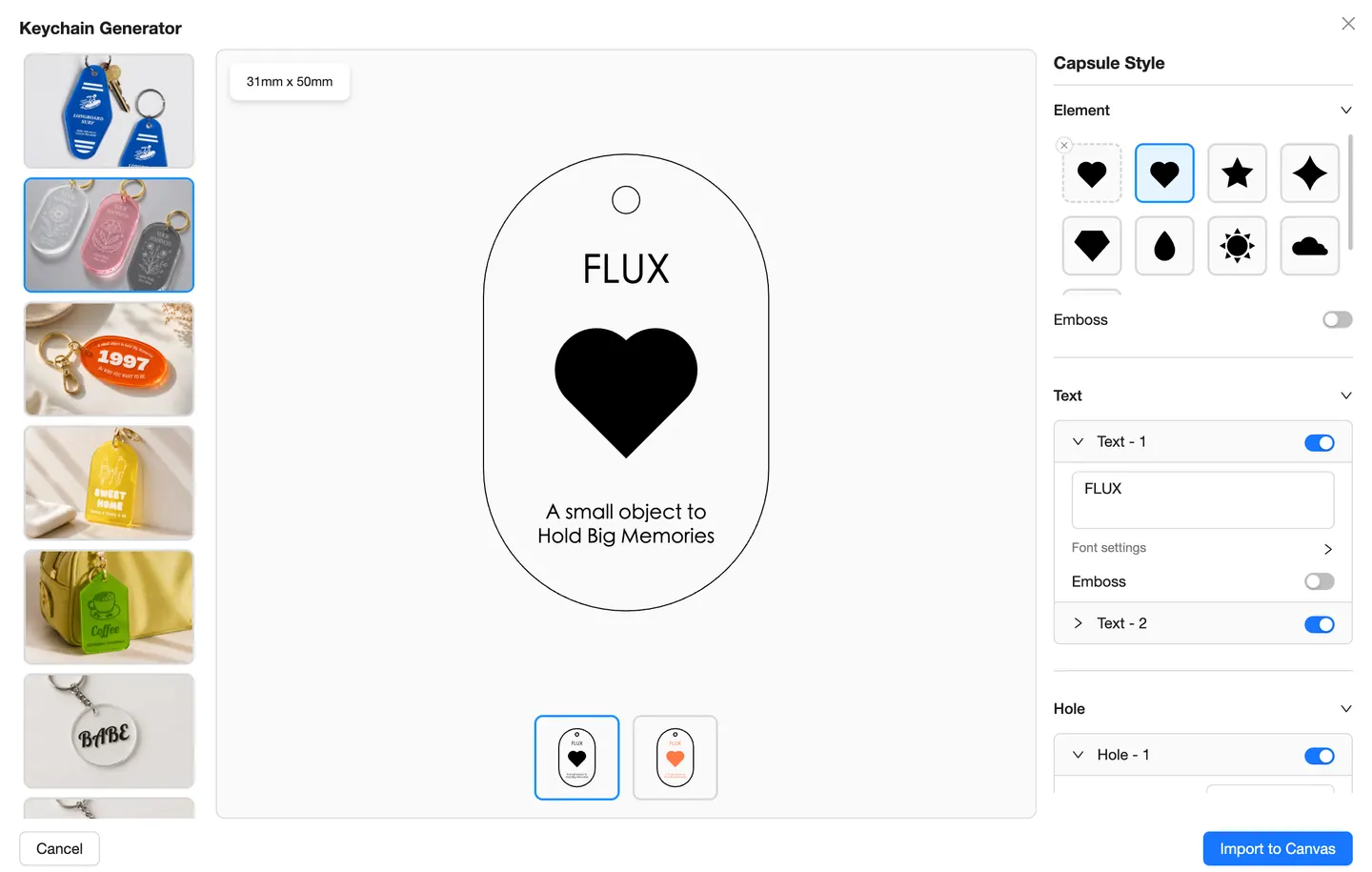
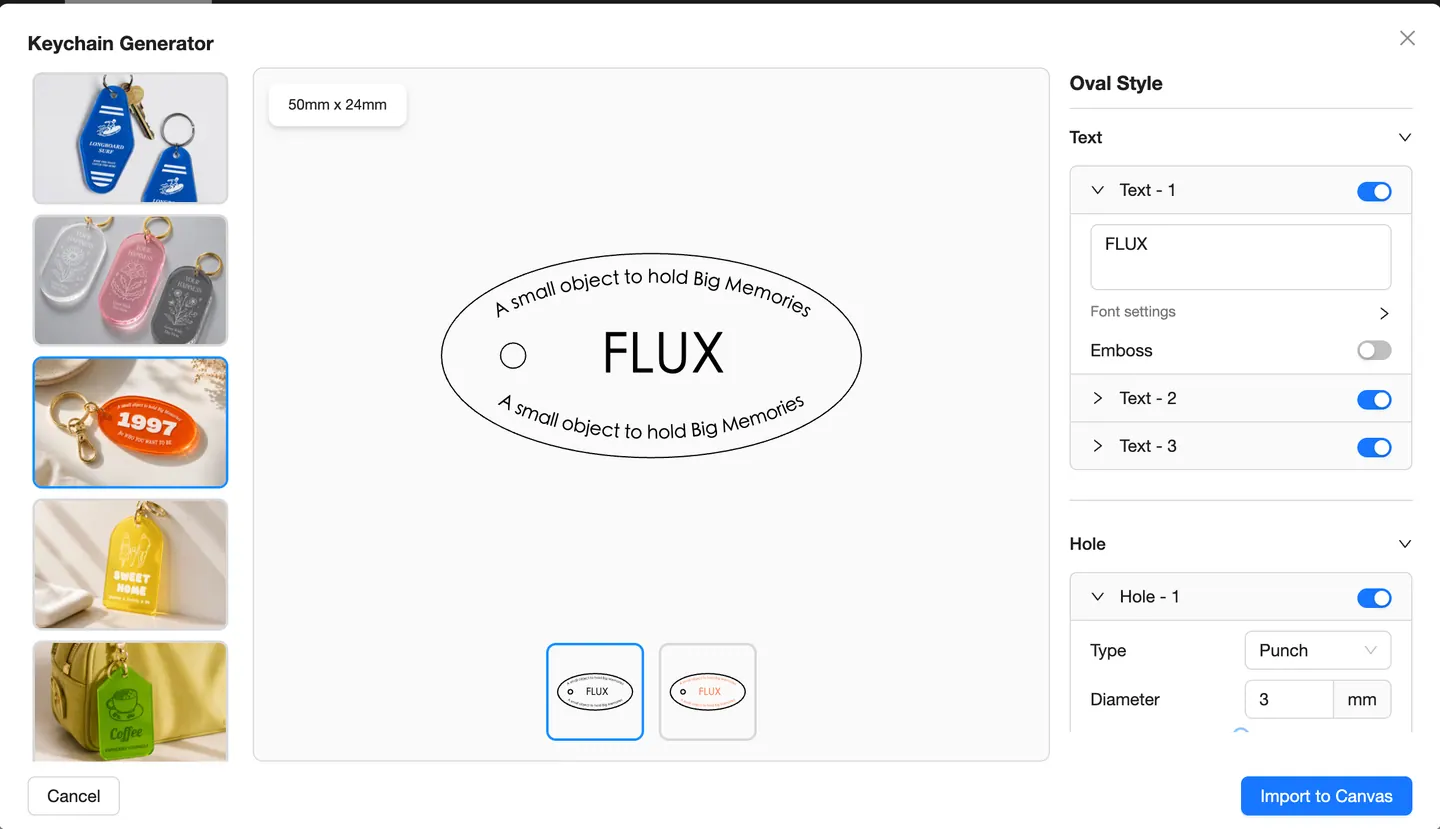
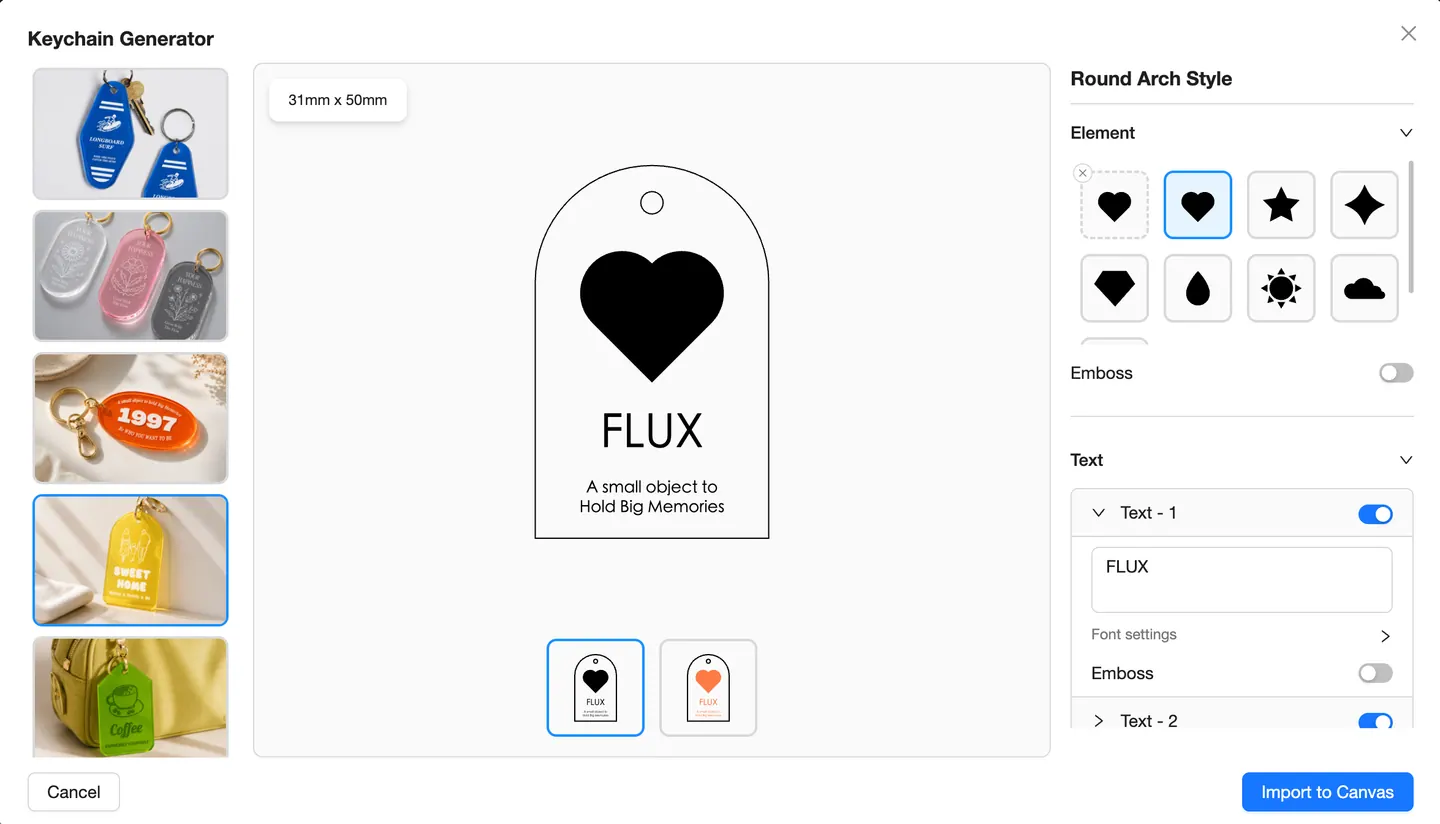
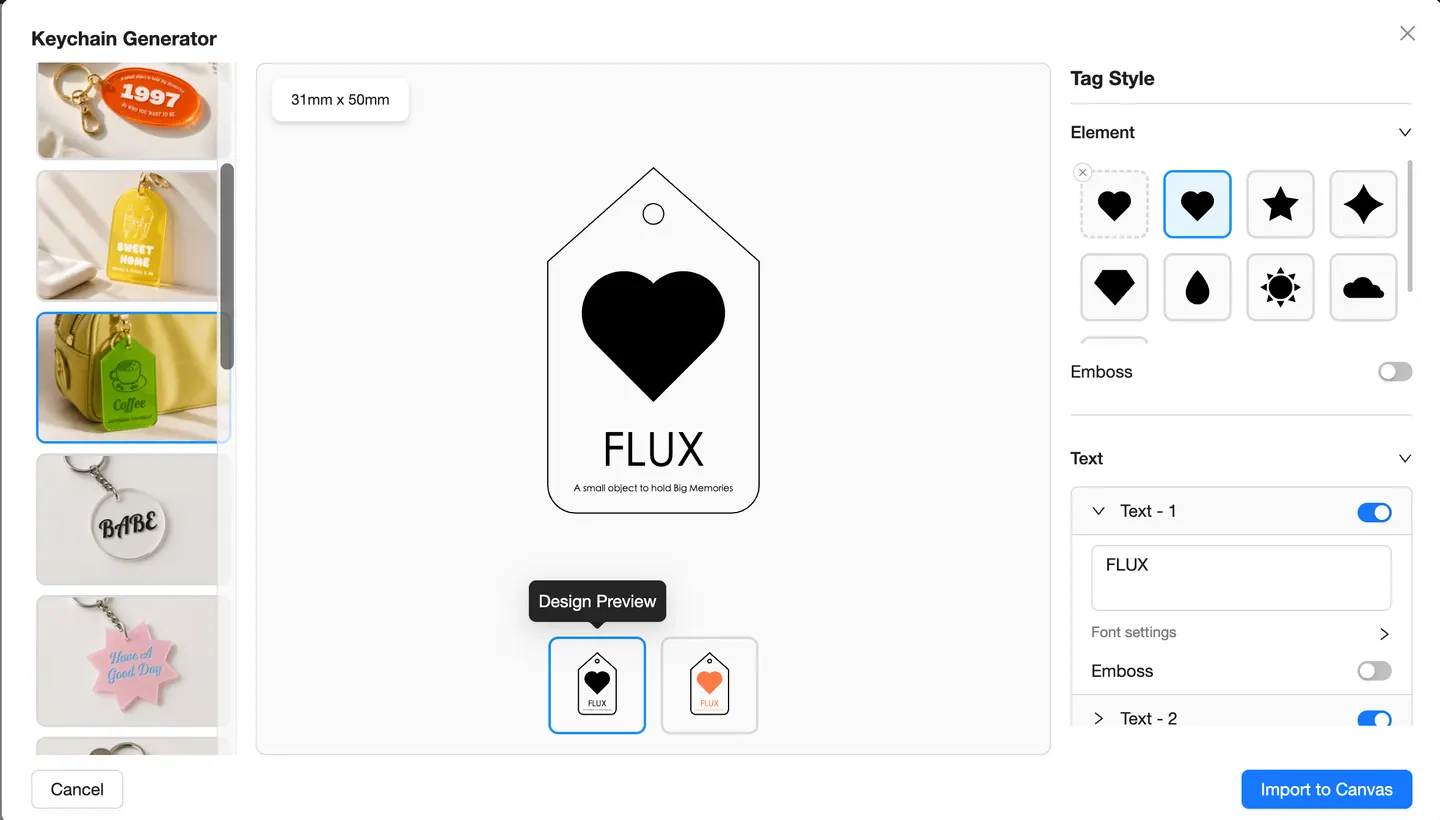
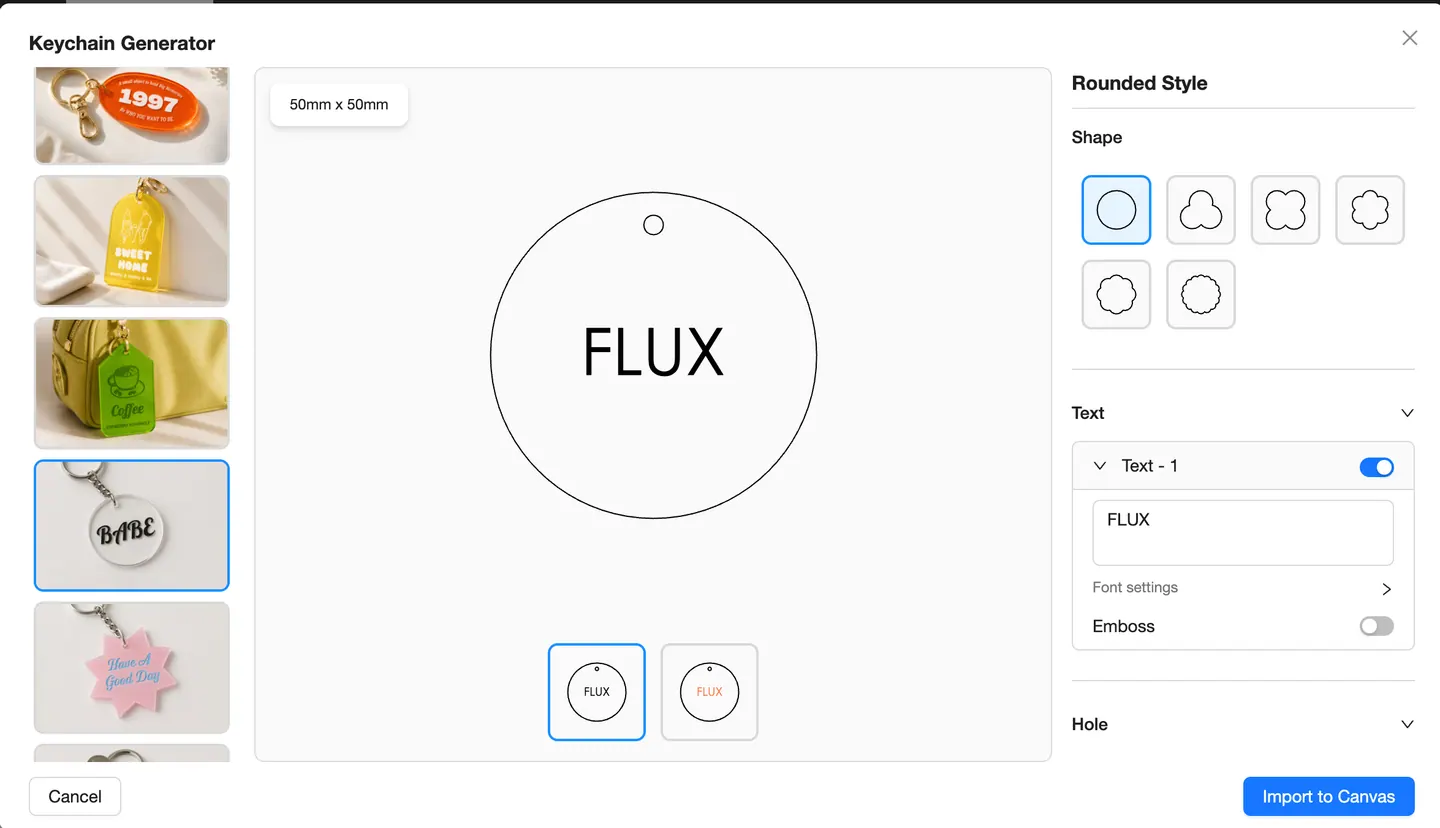
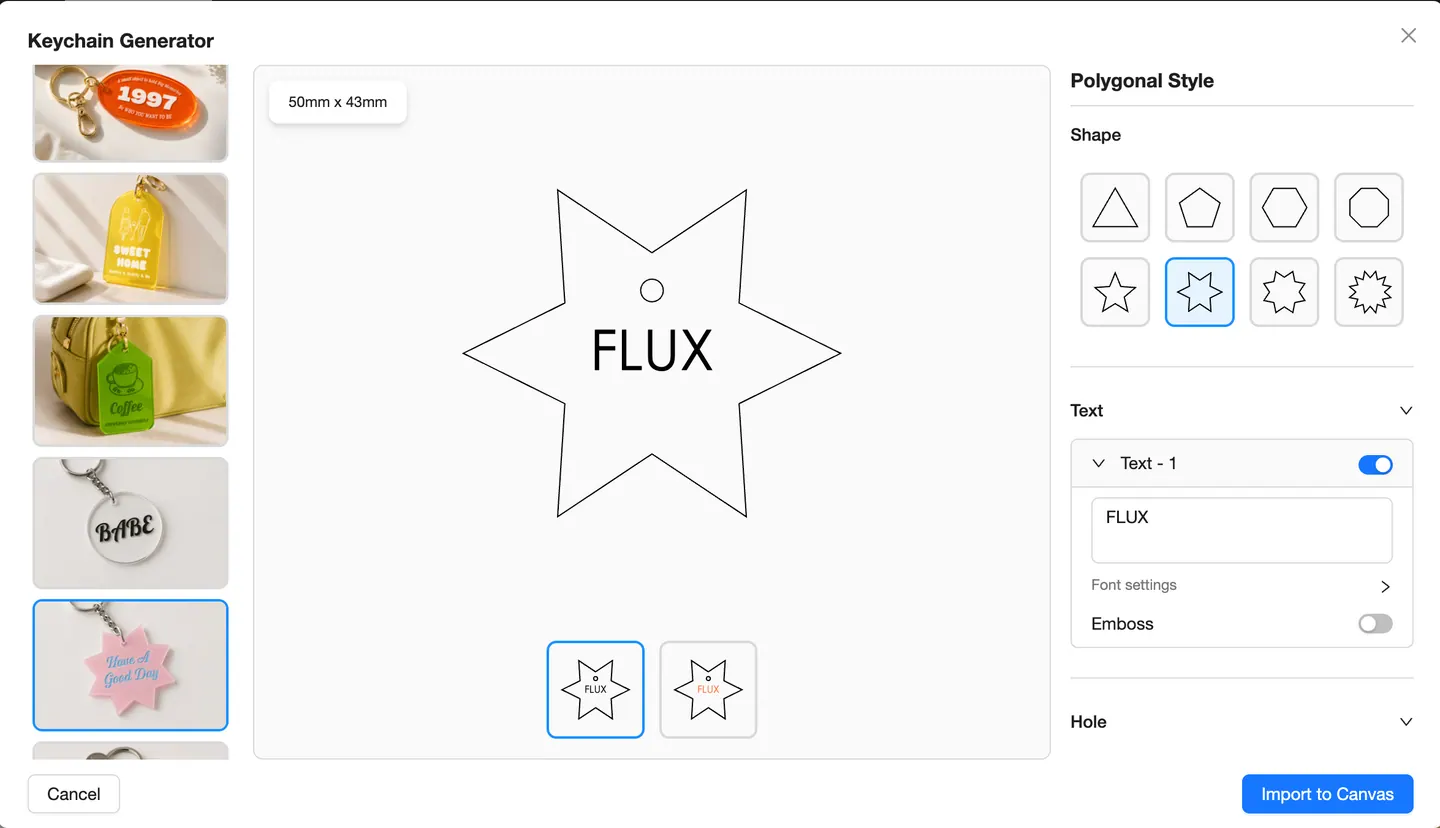
The supplied layouts include long tags, capsule and oval formats, rounded arches, conventional tags, rounded shapes, polygonal shapes, and text-led designs. Each one gives you a prepared outline to adapt instead of a blank canvas.
- New makers: begin with a visual starting point and learn through a small, manageable project.
- Repeat makers: reuse a style and change the personalized details for another customer, event, or colorway.
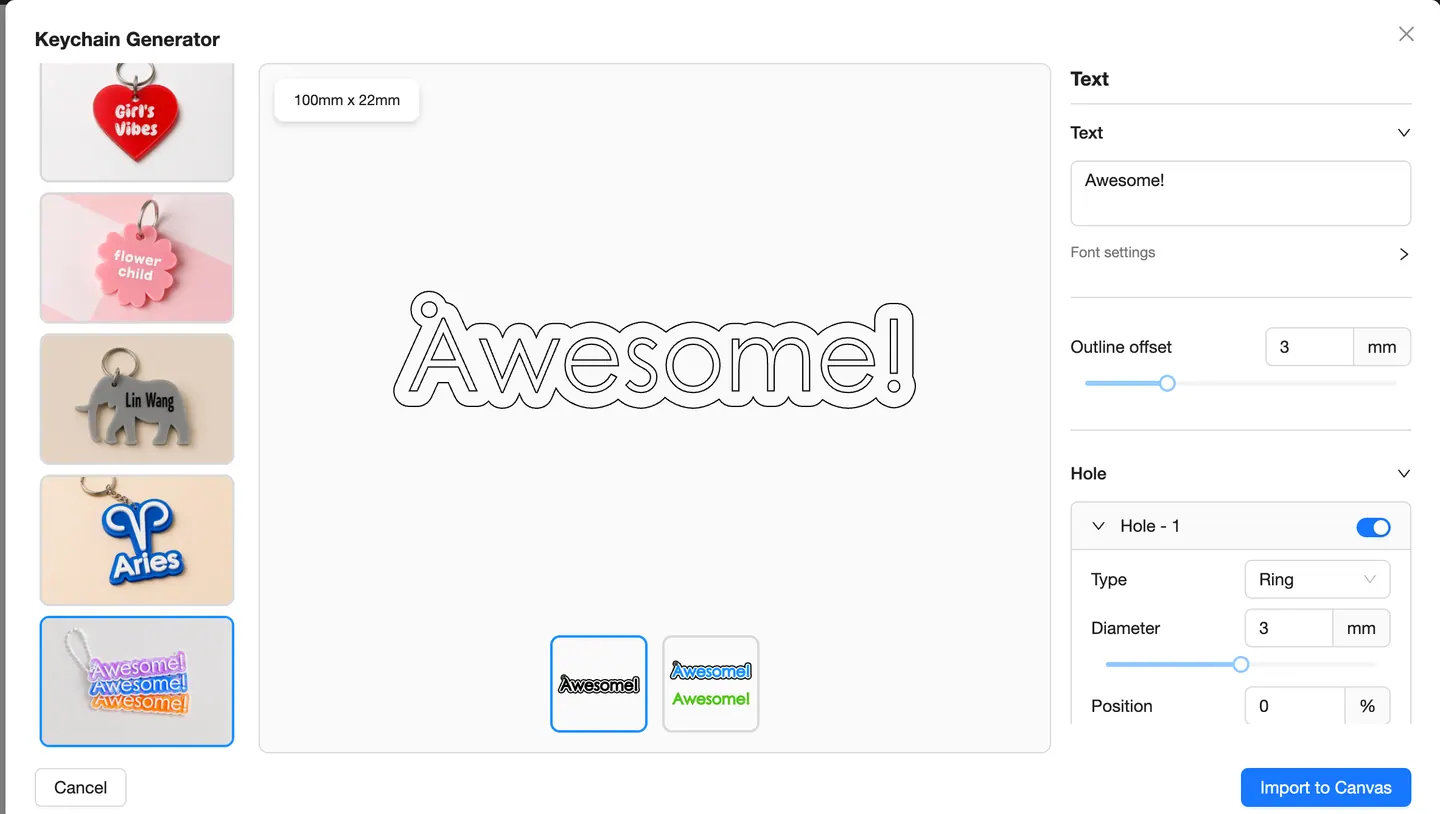
Personalize the visible details
Depending on the selected style, the generator presents controls for text, font settings, decorative elements, emboss options, shape variations, and design previews. You can turn individual items on or off and compare the available versions before importing the result.
Set the connection point
The visible Hole controls let you turn a hole on or off and adjust available options such as its type, diameter, and position. Reviewing the connection point before import helps keep the decorative composition and practical hardware in the same design.
From customization to the Beam Studio canvas
When the design is ready, choose Import to Canvas. The artwork moves into Beam Studio, where you can position it, organize processing layers, set the appropriate engraving or cutting parameters, preview placement on supported machines, and prepare the job for your FLUX laser.
This connected workflow is the main advantage: the generated design does not need to be exported and rebuilt in a separate application before production. The official Beam Studio overview describes the same broader workflow—edit artwork, preview placement, manage layers and process settings, then send the job to a FLUX machine.
Make your first custom keychain
- Update to Beam Studio 2.6.9 or later.
- Open Generators from the toolbar.
- Choose Keychain Generator.
- Pick a style that fits the project.
- Customize the text, font, elements, shape options, and keyring hole available for that style.
- Check the size and design in the live preview.
- Select Import to Canvas.
- Position the artwork and assign suitable engraving and cutting settings for the actual material.
- Preview the work area when your machine supports it, then send the job to the laser.
Before the final piece: always test a new material or unfamiliar setting.
Explore all five Beam Studio Generators
The Keychain Generator joins a set of tools that remove common setup steps from laser projects.
Box Generator
Set dimensions and material thickness to generate panels for a box that can be cut and assembled. The Beam Studio product page documents this generator as part of the current workflow.
Code Generator
Create a vector code inside Beam Studio and place it in a sign, tag, package, menu, or promotional design. The 2.6.9 release notes also record an interface adjustment to the barcode and QR code generator.
Puzzle Generator
Create a puzzle layout and adjust available properties before importing the result. The Beam Studio 2.6.6 release notes record the addition of Puzzle Generator.
Material Test Generator
Prepare a structured material test so you can compare settings before committing a new sheet or material to the final design.
Keychain Generator
Choose a prepared keychain style, personalize the design, configure the connection point, and import the result directly to the canvas.
Design and make without switching tools
The value of Beam Studio Generators is not only the template. Each tool removes a repetitive preparation step while keeping the result connected to the rest of the laser workflow.
Generate the starting structure, customize the details, import it to the canvas, position it on the material, and prepare the job in one workspace. Whether you are making one personal gift or planning a repeatable product line, fewer handoffs leave more time to focus on the finished result.
Start creating with Beam Studio Generators
Update Beam Studio, choose a style, personalize the details, and move from an idea to a project ready for your FLUX laser.